Practical ideas for smarter everyday spaces
Small Space TricksFR

Workspace · PRACTICAL GUIDE

How to Organize a Small Desk Without Losing Workspace

The best small-desk organization moves equipment above, below, or beside the work surface while keeping the center available for actual work.

How to Organize a Small Desk Without Losing Workspace

The best small-desk organization moves equipment above, below, or beside the work surface while keeping the center available for actual work. Start with what interferes with movement or daily use, then choose the simplest solution you can maintain.

6 ways to solve the problem

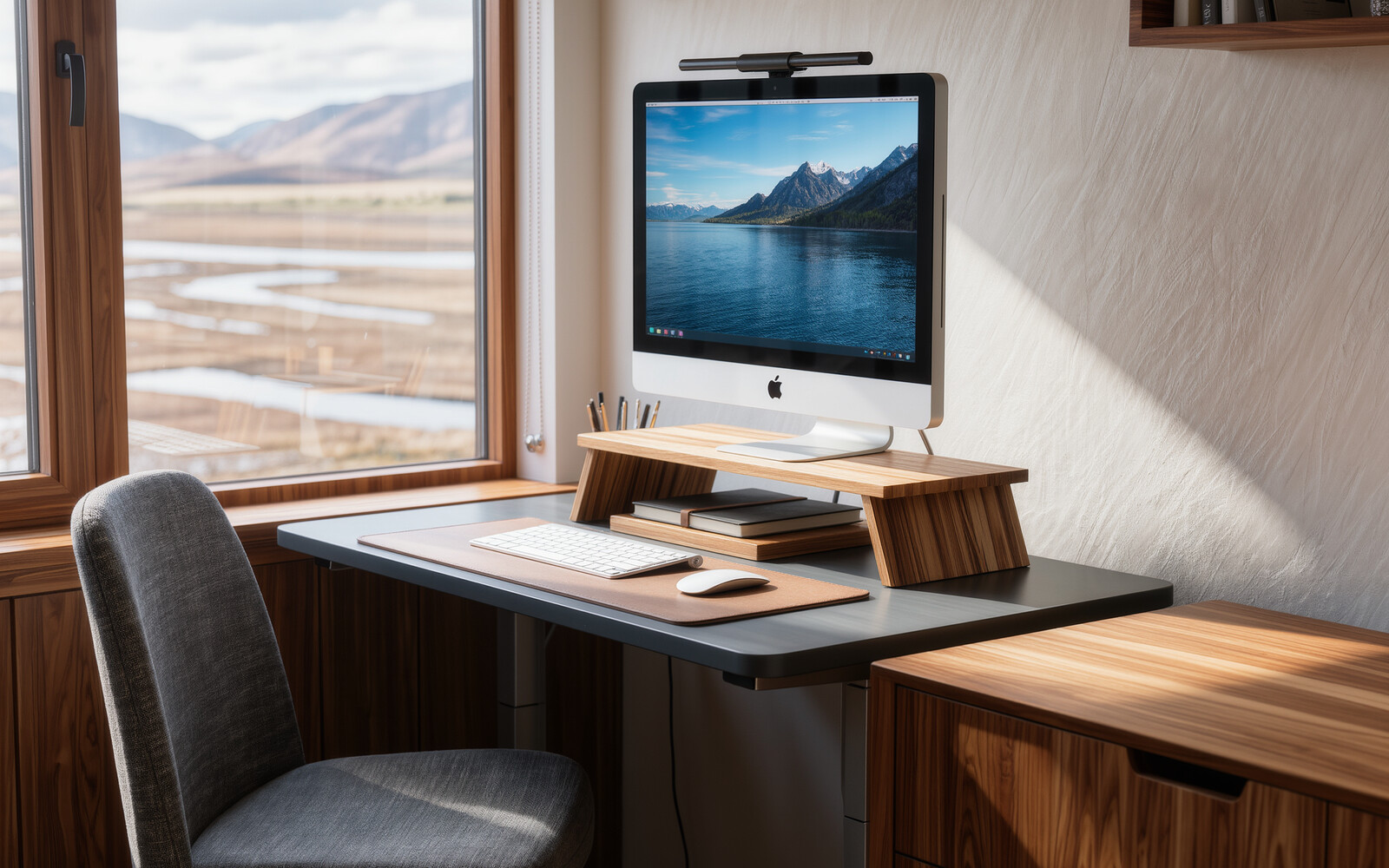
Raise the monitorA monitor riser can create a shallow storage zone underneath while improving sightline.
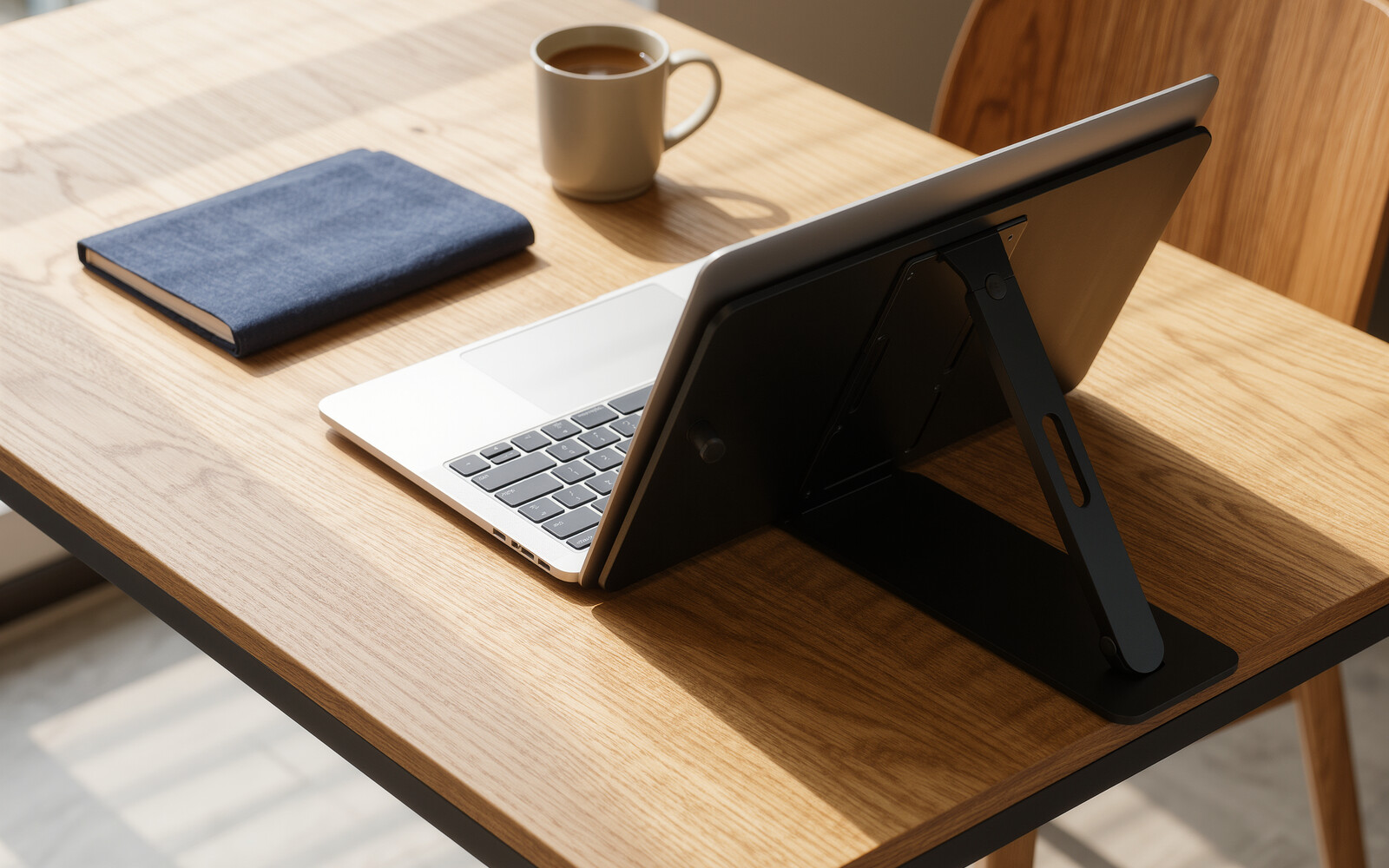
Stand the laptop vertically when dockedA vertical stand reduces the footprint of a closed laptop.
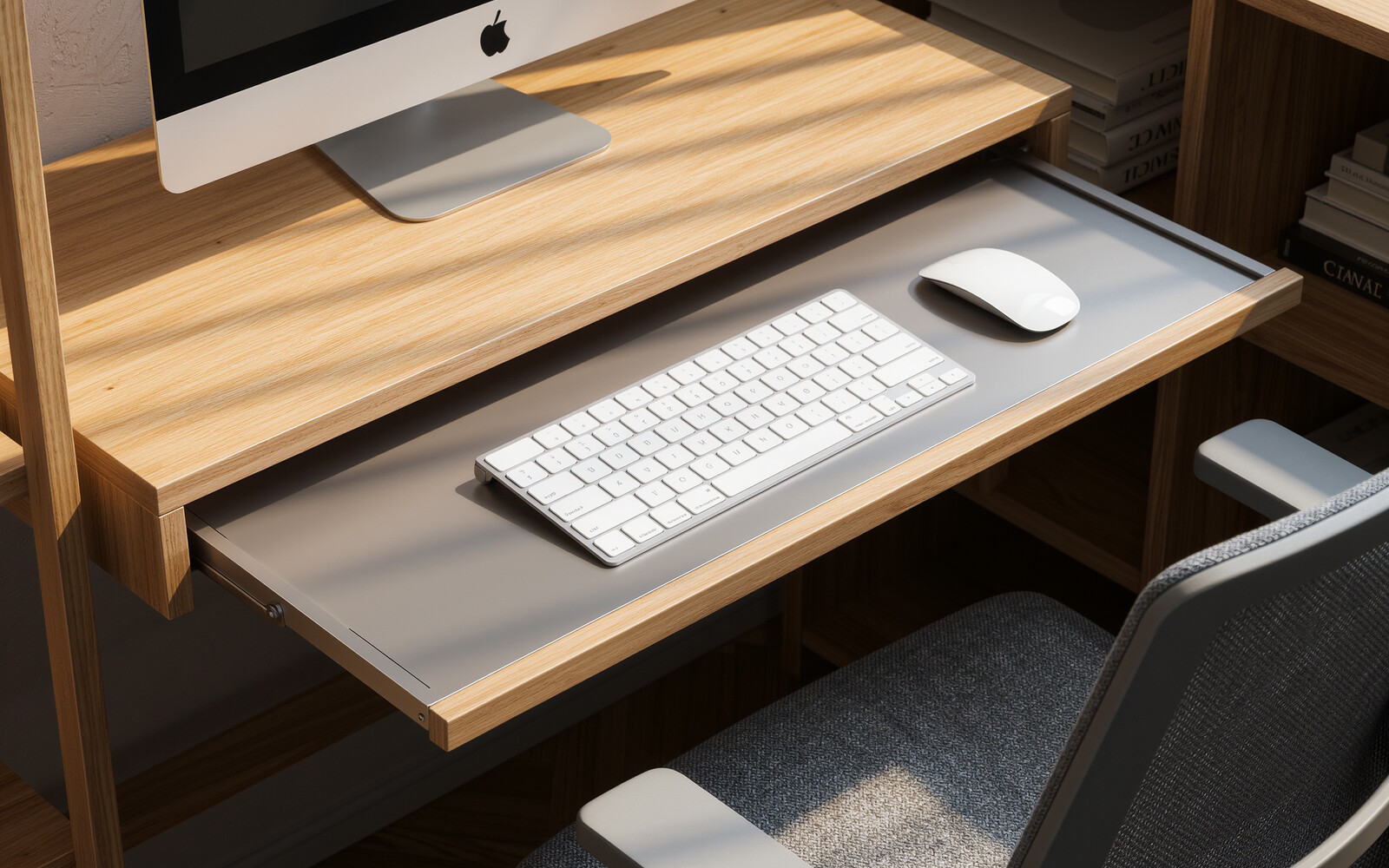
Move the keyboard below when appropriateAn under-desk tray can clear the surface, provided it leaves comfortable leg and wrist space.
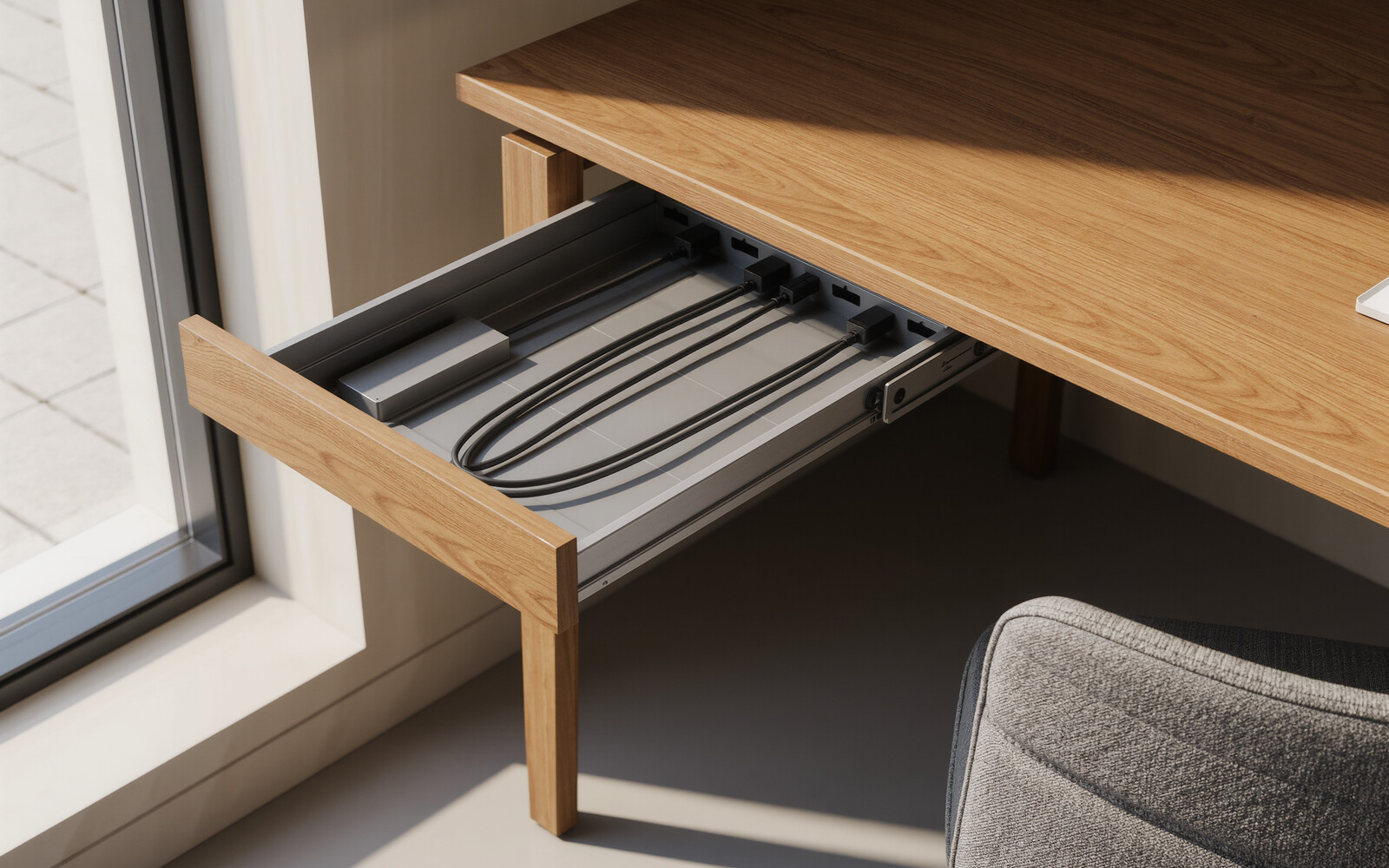
Route cables under the deskA cable tray keeps adapters and excess cord off the worktop and floor.
Hang lightweight accessoriesHeadphones and small items can use the desk edge or underside instead of the surface.
Keep one reset ruleAt the end of work, return the center of the desk to a clear state.
Small-space rule

Measure the circulation path and working zone first. Storage only helps when it improves access without making movement harder.

Why this approach works

In a small room, every addition has to justify its footprint. The most durable solutions use space that already exists, reduce the number of steps needed to put things away, and keep frequently used items easy to reach.

Before buying an organizer, test the idea with what you already own and verify the dimensions. That prevents a storage problem from turning into a crowding problem.

Continue with these guides

SOLUTION → FIT → PRODUCT

Concrete solutions for this exact problem

Start with the constraint, verify fit, then buy only when the dimensions and operating space match your room.

1 · DIAGNOSE

Move equipment vertically or below the work surface so the primary keyboard/mouse/writing zone stays open.

2 · MEASURE

Measure monitor footprint, desk depth/width, underside clearance, device thickness and cable travel.

3 · FIT TEST

Protect your active work rectangle first; accessories must sit above, beside or below it without harming posture.

4 · REJECT IF…

Reject anything that raises the monitor too high, blocks knees, traps cables/heat or consumes more usable desk area than it frees.

MEASURE → FILTER → VERIFY

Measure the desk before adding storage

Record the limiting width, depth or underside clearance around the desk.

cm
Where can the solution live without stealing work surface?

What your filter meansShowing all solution types. Add a measurement and choose the usable zone to narrow the shortlist.
illustrative visual: Monitor riser with storage
FIT FILTER 1

Monitor riser with storage

Use this solution type only after it passes the fit checks below.

Best whenThe monitor already occupies valuable desk depth and you can use the space beneath it.
Measure thisMonitor base width/depth, riser platform size, resulting screen height and storage clearance underneath.
Reject ifThe screen becomes too high, the base does not sit fully on the riser or storage access conflicts with keyboard space.
illustrative visual: Vertical laptop stand
FIT FILTER 2

Vertical laptop stand

Use this solution type only after it passes the fit checks below.

Best whenA closed or docked laptop takes up horizontal desk space.
Measure thisLaptop thickness, stand adjustment range, base footprint, cable direction and ventilation needs.
Reject ifThe grip is too loose/tight, vents are blocked, cables pull the device or you need the laptop screen open while working.
illustrative visual: Under-desk keyboard tray
FIT FILTER 3

Under-desk keyboard tray

Use this solution type only after it passes the fit checks below.

Best whenKeyboard/mouse depth is the main reason the desktop feels crowded.
Measure thisDesk underside width/depth, apron/frame obstructions, knee clearance and tray travel.
Reject ifMounting hits a frame, the tray reduces knee space, posture worsens or the tray cannot retract completely.
illustrative visual: Move cables under the desk
FIT FILTER 4

Move cables under the desk

Use this solution type only after it passes the fit checks below.

Best whenCable slack and adapters are occupying desk or floor space.
Measure thisUnderside run length, frame/apron obstructions, cable bend radius and access to plugs.
Reject ifThe tray interferes with knees, blocks ventilation or makes essential plugs inaccessible.
illustrative visual: Hide small tools in an under-desk drawer
FIT FILTER 5

Hide small tools in an under-desk drawer

Use this solution type only after it passes the fit checks below.

Best whenPens, adapters and small tools repeatedly spread across the work surface.
Measure thisFree underside area, drawer depth, knee clearance and mounting surface.
Reject ifThe drawer hits knees, interferes with a desk frame or cannot open fully.
illustrative visual: Use a clamp-on lamp
FIT FILTER 6

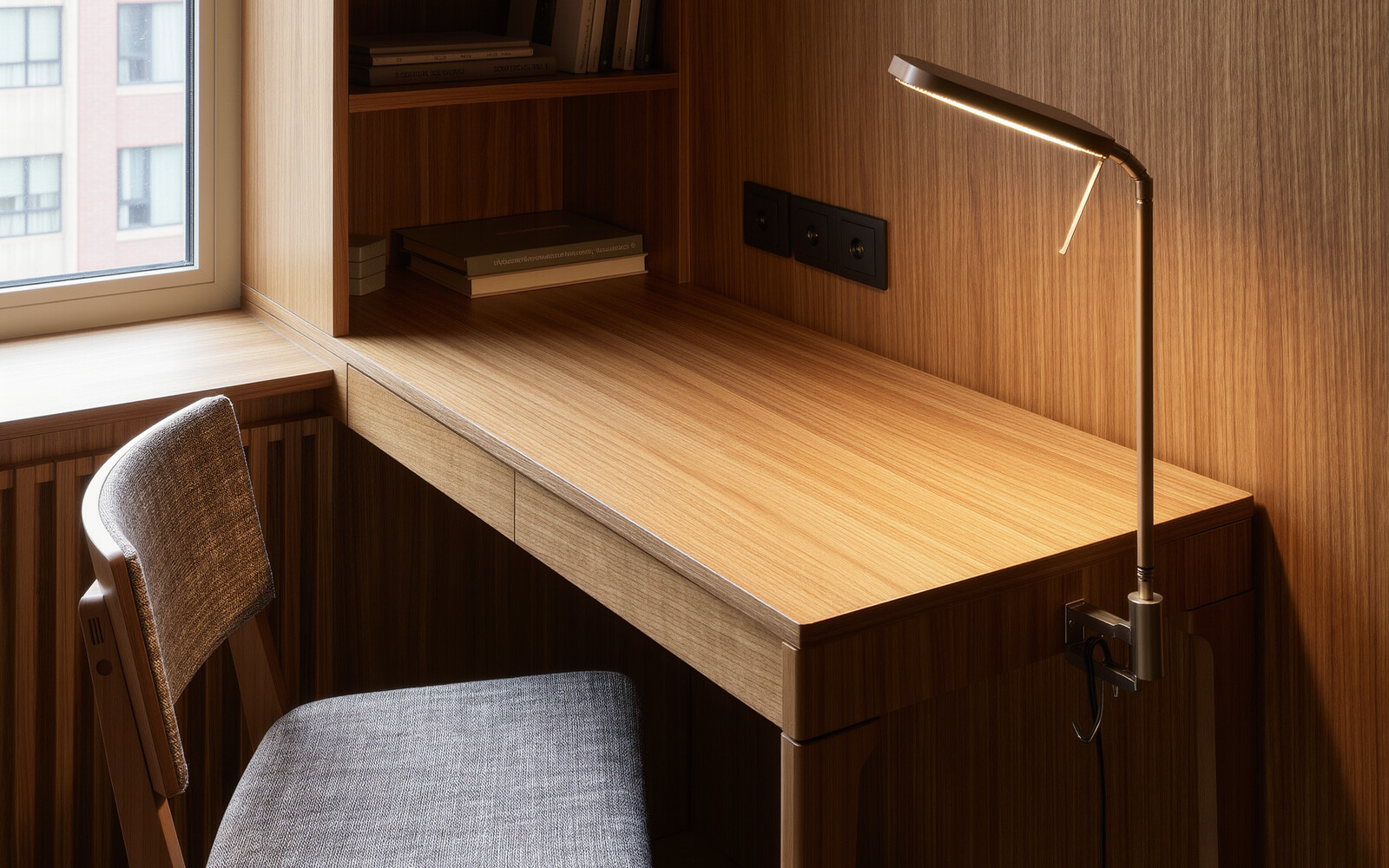
Use a clamp-on lamp

Use this solution type only after it passes the fit checks below.

Best whenA conventional lamp base consumes useful desk area.
Measure thisDesktop edge thickness, clamp range, lamp reach and cable route.
Reject ifThe clamp damages the edge, arm blocks the monitor or lighting cannot reach the task zone.

No solution is shown for this filter. Show all solutions and compare the fit checks manually.

How we evaluate a small-space solution

We do not rank a solution just because it is compact. We first identify the space problem, the limiting measurement, the operating clearance and the installation constraint. A product is worth considering only when its current listing dimensions and use requirements fit those limits.

Our rule: solve the constraint first, compare at least two viable options, and reject anything that creates a new circulation, access or maintenance problem.

Before buying: compare 2–3 viable options. Check dimensions, operating clearance, installation method, return conditions and current price—not just the product photo.

Visuals are illustrative and show the solution type, not necessarily the exact product. Some product links may earn us a commission at no extra cost to you. Always verify dimensions, mounting surface, load limits and clearances on the product listing.